EntraExportRestore
Attribute-level Entra ID directory backup and restore — your safety net for bulk update mistakes.
EntraExportRestore brings directory backup discipline to Microsoft Entra ID — selective, attribute-level export and restore via Microsoft Graph. Microsoft Entra ID now includes native Backup and Recovery (preview) for supported objects; EntraExportRestore complements that with administrator-controlled, locally stored snapshots taken before planned changes. It targets everyday operational risk — bulk PowerShell, Graph API, provisioning, and delegated-admin mistakes — not whole-tenant disaster recovery.
Early adopter note
EntraExportRestore is newly available and is currently best suited for technical evaluation, lab validation, and controlled pilot use. Production use should begin with non-destructive export workflows and carefully reviewed restore testing. Feedback from early adopters is welcome.
Who it’s for
Identity administrators and IT operations teams responsible for Entra ID tenants who need a lightweight, auditable safety net for directory data — without the complexity or cost of enterprise backup platforms.
The problem it solves
Every Entra ID administrator has run a bulk update — a PowerShell script, a Graph API call, a third-party provisioning action — and wondered immediately after whether it did exactly what was intended. Entra ID has no native mechanism to roll back individual attribute changes or restore specific object states after an erroneous bulk operation, scripted change, or delegated-admin mistake.
When something goes wrong, the options are manual reconstruction from memory, piecing together audit log fragments, or accepting data loss. EntraExportRestore captures versioned snapshots of users, groups, devices, contacts, named locations, and Conditional Access policies to a local SQLite database, lets you compare backed-up values against live Graph data, and restores granularly where supported — with preview before anything is written.
Microsoft Entra Backup and Recovery (public preview; Entra ID P1 or P2) is an always-on, Microsoft-managed safety net: one automatic daily backup of supported directory objects, retained for five days, with difference reports and recovery jobs run from the Entra admin centre.
EntraExportRestore is complementary, not a substitute. It protects a different moment in the change lifecycle — before you run bulk PowerShell, a Graph integration, a provisioning job, or a delegated-admin update:
- You choose the moment — snapshot on demand, immediately before a planned change, rather than relying on a backup that may be up to 24 hours old
- You keep the history — snapshots live in a local SQLite database for as long as you need, not a fixed five-day window
- Attribute-level, not object-level — select exactly the attributes to capture, preview each value, and restore only what changed
- Automation-ready — CLI exports, documented exit codes, and HTML/JSON/CSV difference reports for pipelines and audit evidence
Many teams use both: Microsoft’s preview for reactive recovery inside its retention window, and EntraExportRestore for pre-change rollback and longer local history. For the full factor-by-factor comparison, see EntraExportRestore vs Microsoft Entra Backup and Recovery.
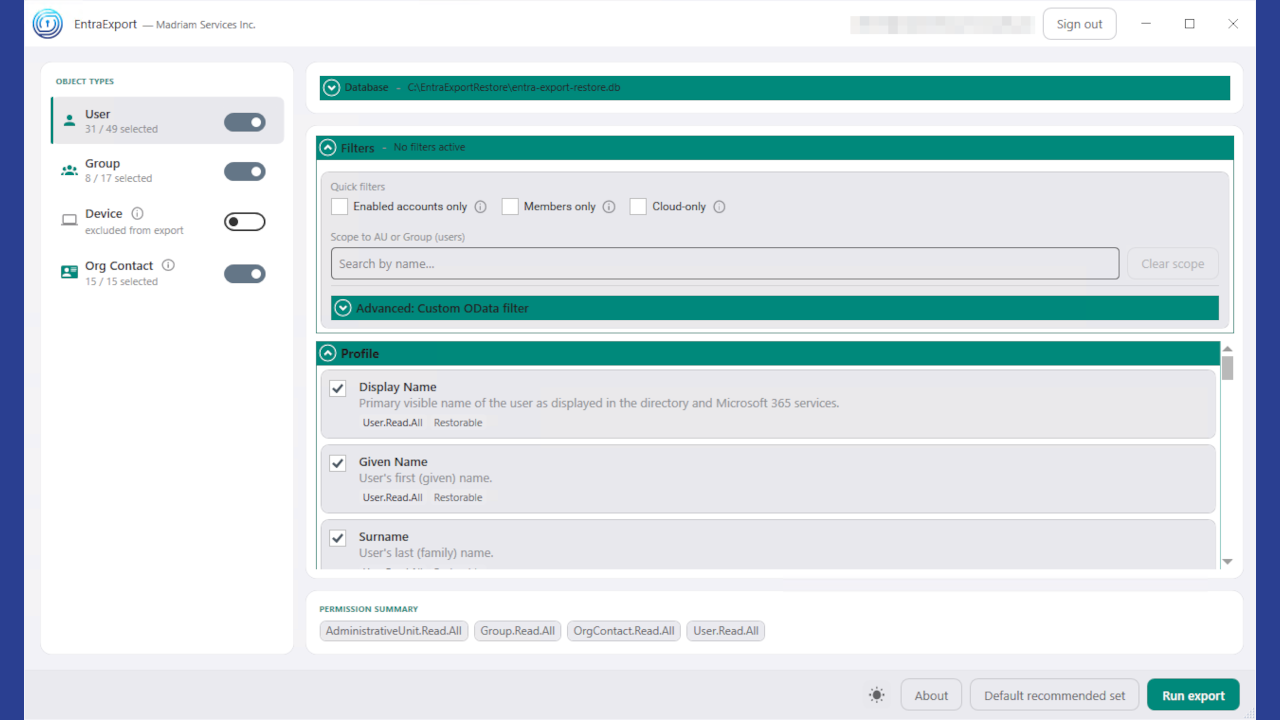
- Export snapshots of users, groups, devices, contacts, named locations, and Conditional Access policies on demand or on schedule (current release: 1.3.0)
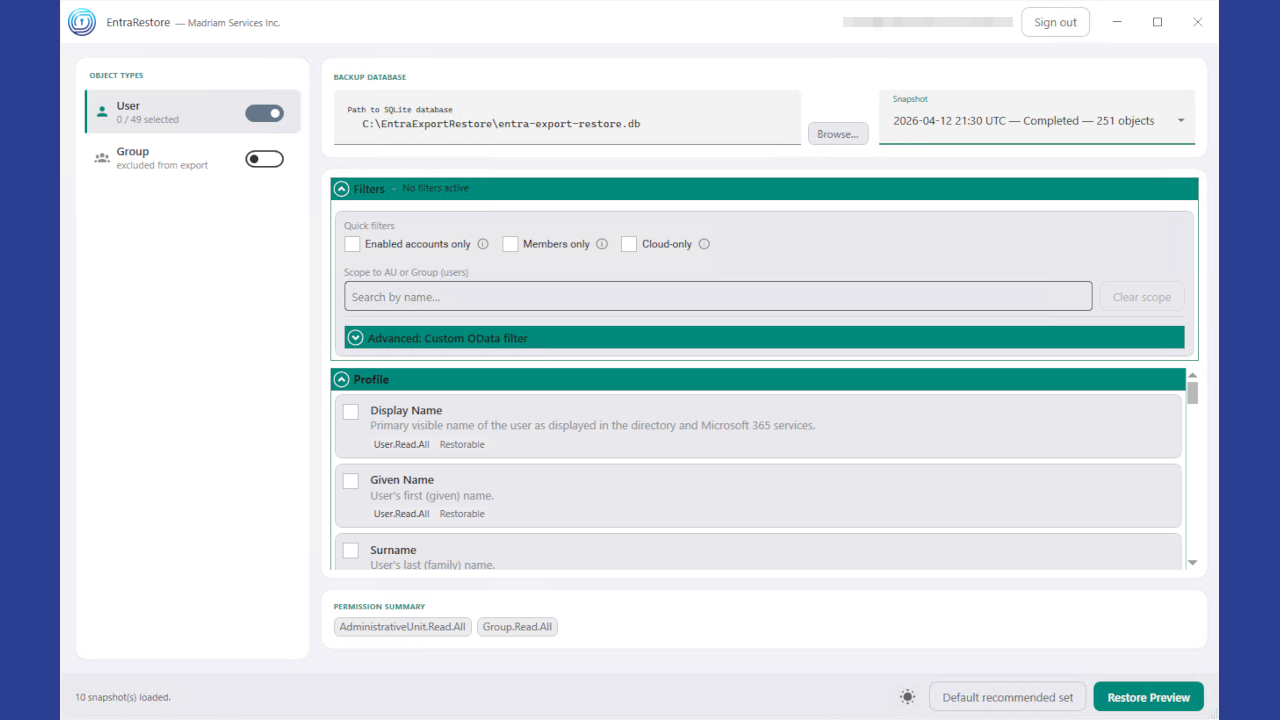
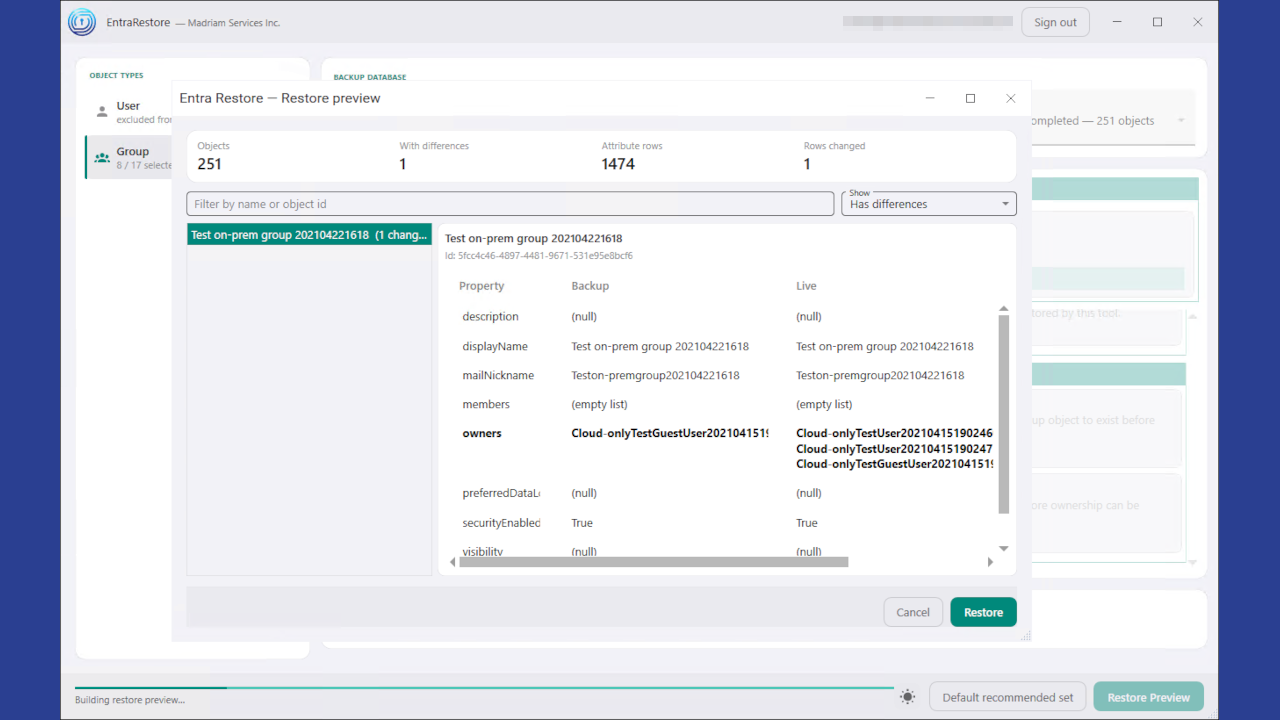
- Restore individual attributes selectively, with pre-restore preview showing current vs. backed-up values; optional recreation of missing named locations and policies with in-tenant ID remap
- Export difference reports (HTML, JSON, CSV) from Restore Preview for human review, audit evidence, or automation pipelines
- Attribute catalog drives all operations — exportable, restorable, sensitive, and capture-only fields, plus required Graph permissions; catalog version recorded with each snapshot
- WPF desktop UI with persistent delegated sign-in; CLI for scripted workflows with documented exit codes and structured export JSON
- Windows installer with in-place upgrade, repair, and silent deployment switches for unattended rollout
- Local SQLite storage — snapshot data stays in your environment; no vendor-operated background service
- Vendor-supplied multi-tenant app (delegated, interactive desktop) or customer-owned single-tenant registration with certificate auth (CLI and strict policy tenants)
- Not a full-tenant disaster-recovery platform — operational, attribute-level scenarios only; complements Microsoft Entra Backup and Recovery rather than replacing it
- Does not export or restore applications, service principals, or managed identities — Microsoft’s preview covers those object classes
- Organisational contacts can be exported for reference but are read-only in Microsoft Graph; snapshot data is a manual recovery reference only
- Device attribute restore requires application permissions and is supported via the CLI only, not the desktop Restore UI
- Conditional Access and named locations are opt-in and security-sensitive; changes can affect sign-in — always review restore preview carefully
Built for cautious identity teams.
- Runs locally — the desktop apps and CLI execute on your own Windows host, not a vendor-operated service
- Stores snapshots locally — exports are written to a local SQLite database that stays in your environment
- Uses Microsoft Graph — all reads and writes go through Microsoft’s documented Graph endpoints
- Supports customer-owned app registration — use your own single-tenant registration and certificate if policy requires it
- No vendor-hosted tenant data — Madriam Services does not store or process your directory data on our infrastructure
- Restore actions require explicit permissions and preview — nothing is written back until you grant the scope and confirm the change
Up and running in five steps.
Follow these steps to complete your initial setup and take your first snapshot.
Download and install
After purchase on Microsoft Marketplace, complete subscription setup on the listing page and follow Microsoft’s post-purchase steps to receive your licence file. Licensed subscribers will be forwarded to a page to download both the licence and the product. Extract the signed .exe, run the installer on a Windows machine with network access to your Entra ID tenant, and keep the licence file in a known location — you will need it in the next step.
Activate your licence
On first launch, the application will prompt for your licence file. You can also place the file in the default discovery location documented in the User Guide, or supply it via the --licence argument on the CLI.
Prepare authentication
Desktop UI (EntraExportUI / EntraRestoreUI): Use interactive sign-in. You can use the Madriam-supplied multi-tenant Enterprise application after your administrator grants consent, or your organisation can use its own app registration if policy requires it. Desktop sign-in uses delegated permissions, so the tool acts within the rights of the signed-in administrator.
CLI (automated / unattended use): Create your own single-tenant app registration, add a client certificate, grant Microsoft Graph Application permissions, and grant admin consent. Delegated permissions and device-code sign-in are not used by the CLI.
For the default export catalog, configure these Graph read permissions as Application permissions:
User.Read.AllGroup.Read.AllDevice.Read.AllOrgContact.Read.AllAuditLog.Read.AllCustomSecAttributeAssignment.Read.All
The CLI command EntraExportRestore permissions prints the exact read permission list for your saved export configuration.
Restore permissions depend on the attributes you plan to write back. Common restore scopes include:
User.ReadWrite.AllGroup.ReadWrite.AllGroupMember.ReadWrite.AllDirectory.ReadWrite.AllCustomSecAttributeAssignment.ReadWrite.All
Device restore is CLI-only and requires Device.ReadWrite.All. Organisational contacts are exported for reference but are not restored automatically through Microsoft Graph.
Take your first snapshot
Open EntraExportUI, sign in, select the object types and attributes you want to capture, and run an export. Note the snapshot ID reported on completion — you will use it if you need to restore from this snapshot later.
Verify restore readiness
Open EntraRestoreUI, select the snapshot you just created, and review the attribute preview. No changes are written until you confirm. This confirms your permissions and configuration are correct before you need to rely on a restore in a real incident.
Further reading
The User Guide covers the full attribute catalog, restore behaviour, CLI reference, known Graph constraints, and security model in detail. Refer to it before deploying the CLI in a production automation context.
Guides for Entra ID administrators
Practical notes on backup, audit logs, and recovery — written for identity teams managing day-to-day change risk.
Can You Roll Back Microsoft Entra Attribute Changes?
What Entra ID does and does not let you undo after a bulk attribute update.
How to Back Up Entra ID Users Before a Bulk PowerShell Change
How to export user attributes before a bulk PowerShell or Graph change.
Why Entra Audit Logs Are Not the Same as Restore
Why Entra audit logging complements — but does not replace — directory backup.
How to Recover from an Accidental Graph API Bulk Update
Incident steps when a Graph API job writes incorrect data at scale.
A Pre-Change Checklist for Microsoft Entra ID Administrators
A repeatable checklist before bulk Entra ID directory changes.
Microsoft Entra Backup and Recovery vs Attribute-Level Restore Tools
How tenant DR, audit, and attribute-level tools address different risks.
EntraExportRestore vs Microsoft Entra Backup and Recovery
Native daily backups vs pre-change snapshots — what each covers and when to use both.