AD Export/Restore
Command-line and GUI applications for exporting and restoring Active Directory attribute data to/from SQLite. Option names are case-insensitive (e.g. --searchroot and --searchRoot are equivalent).
Requirements
- .NET 8.0 runtime
- Windows (for Active Directory/LDAP)
Licence
A valid licence file is required. Place it at:
%AppData%\ADExportRestore\licence.json
To use a different location, set the ADEXPORT_LICENCE_PATH environment variable to the full path of the licence file, or use the --licence option with the CLI tools.
Contact your administrator or vendor for licensing.
Configuration (search roots, attributes, filters, purge settings, domain controller mappings, etc.) is stored at %AppData%\ADExportRestore\config.json and is shared by the CLI and GUI applications. Use the config subcommand to view or modify config values without editing the file directly.
Installation
- Extract the zip to a folder of your choice.
- Ensure the .NET 8.0 runtime is installed.
- Place your licence file at the default path or configure the path as above.
Components
| Application |
Description |
| ADExport |
CLI: Export AD objects and attributes to SQLite |
| ADRestore |
CLI: Restore attributes from SQLite to AD |
| ADExportUI |
GUI for ADExport |
| ADRestoreUI |
GUI for ADRestore |
ADExport – Export AD objects to SQLite
ADExport uses an export subcommand:
ADExport export --searchroot "OU=Users,DC=contoso,DC=com" --searchroot "OU=Groups,DC=contoso,DC=com" `
  --exportattribute info --exportattribute department `
  --ldapfilter "(&(objectClass=user)(objectCategory=person))" `
  --database "C:\Backup\ad-export.db"
| Option |
Short |
Required |
Description |
| –searchroot |
-s |
Yes |
LDAP path(s) to search (repeat for multiple) |
| –exportattribute |
-e |
Yes |
Attribute name(s) to export (repeat for multiple) |
| –ldapfilter |
-f |
Yes |
LDAP filter for the search |
| –database |
-d |
Yes |
Path to the SQLite database file |
| –licence |
|
No |
Path to licence file (overrides default) |
| –purge |
|
No |
Purge objects not seen before the cutoff date |
| –purge-max-age |
|
No* |
Max age: 30, 2w, 1m, 1y (*required when –purge and no date in config) |
ADRestore – Restore attributes from SQLite to AD
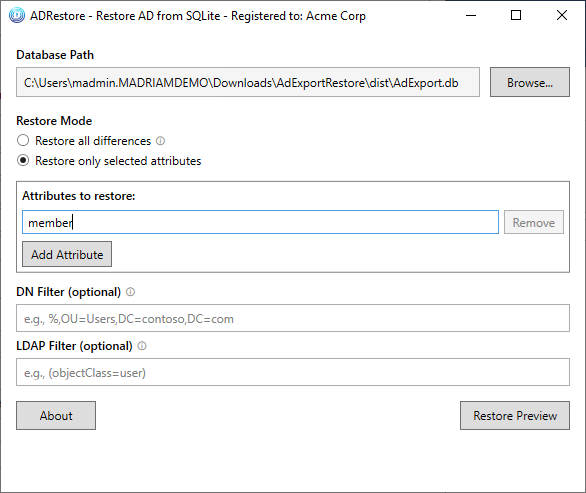
Restore only selected attributes:
ADRestore --database "C:\Backup\ad-export.db" `
  --restoreattribute info --restoreattribute department `
  --dnfilter "%,OU=Users,DC=contoso,DC=com"
Restore all attributes that differ (omits –restoreattribute):
ADRestore --database "C:\Backup\ad-export.db" --dnfilter "%,OU=Users,DC=contoso,DC=com" --noconfirmation
Restore only user objects (LDAP filter):
ADRestore --database "C:\Backup\ad-export.db" --ldapfilter "(objectClass=user)" --restoreattribute department
| Option |
Short |
Required |
Description |
| –database |
-d |
Yes |
Path to the SQLite database file |
| –restoreattribute |
-r |
No |
Attribute name(s) to restore (omit to restore all differing attributes) |
| –dnfilter |
-n |
No |
Restrict to objects whose DistinguishedName matches this LIKE pattern |
| –ldapfilter |
-l |
No |
Restrict to objects whose backup attributes match this filter (see below) |
| –noconfirmation |
|
No |
Skip confirmation prompt when restoring all differences |
| –licence |
|
No |
Path to licence file (overrides default) |
LDAP filter on restore: The --ldapfilter option filters objects by querying the database, not live AD. It therefore only works for attributes that were exported—attributes not present in the backup cannot be used in the filter. The filter uses LDAP-style syntax (e.g. (objectClass=user), (&(attr=val)(attr2=val2))) as a familiar representation, but it is parsed and evaluated in-memory against backup data; it is not a complete LDAP filter implementation and does not support all LDAP filter features.
Config subcommand (ADExport and ADRestore)
Both ADExport and ADRestore support a config subcommand for getting, setting, and listing configuration values using dot-path notation (e.g. export.ldapFilter, restore.lastDatabasePath). No licence is required for config operations.
| Subcommand |
Description |
config get <path> |
Get a config value by path |
config set <path> [values...] |
Set a config value. For lists, provide multiple values to replace the list. Omit values to clear. |
config list |
List all config paths |
config show |
Show full config as JSON |
config path |
Show config file path |
Examples:
ADExport config get export.lastDatabaseFolder
ADExport config set export.lastDatabaseFolder "C:\Backup"
ADExport config set export.lastDatabaseFilename "ADExport-{YYYY}-{MM}-{dd}.db"
ADExport config set export.searchRoots "OU=Users,DC=contoso,DC=com" "OU=Groups,DC=contoso,DC=com"
ADExport config set export.searchRoots
ADExport config list
ADExport config path
The domainControllers section is read-only for config set; edit config.json directly to modify domain controller mappings.
Domain Controller configuration
By default, the application uses the nearest domain controller automatically. To target specific domain controllers (e.g. for load balancing, testing, or when operations span multiple domains), add a DomainControllers array to config.json:
{
  "DomainControllers": [
    { "Domain": "contoso.com", "Server": "dc01.contoso.com" },
    { "Domain": "fabrikam.com", "Server": "dc02.fabrikam.com" }
  ],
  "Export": { ... },
  "Restore": { ... }
}
- Domain: The domain in DNS form (e.g.
contoso.com), derived from the DC= components in DNs.
- Server: The domain controller hostname (e.g.
dc01.contoso.com).
When configured, export uses the DC for the domain of each search root. Restore uses the default (first) DC for object lookups by GUID, and selects the appropriate DC per target domain when restoring backlink attributes (e.g. memberOf → member) that reference objects in other domains. When DomainControllers is empty or absent, the nearest DC is used for all operations.
Export metadata and filename placeholders
Export metadata: Every export records ExportStartedAt and ExportCompletedAt (UTC) in the ExportMetadata table. This identifies when each backup was taken.
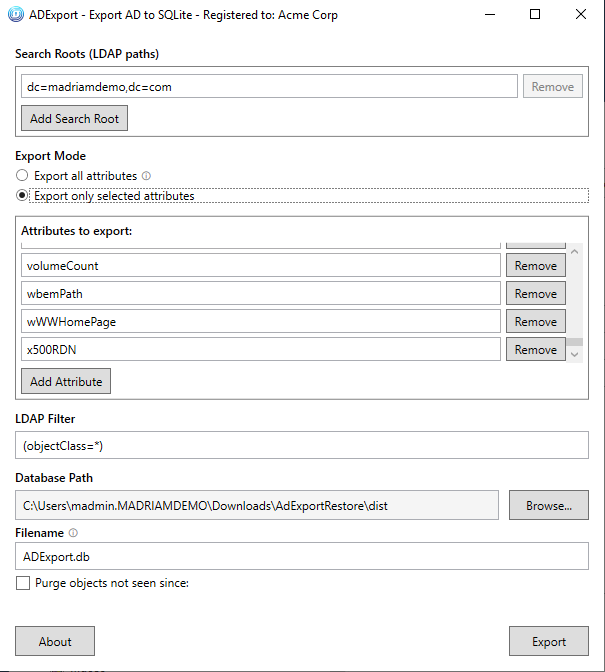
Filename placeholders: Enter any filename in the Export UI or config. If the filename contains placeholders, they are substituted with the current UTC date/time at export: {YYYY} 4-digit year, {yy} 2-digit year, {MM} month, {dd} day, {HH} hour, {mm} minute, {ss} second. Examples: ADExport.db (no substitution), ADExport-{YYYY}-{MM}-{dd}_{HH}{mm}{ss}.db, Backup-{MM}-{dd}.db. Placeholders not present are left unchanged.
Export and restore behaviour
- Export (AD → database): For each object, the app writes the current AD snapshot into the database. If the object already exists (same GUID), its stored attributes are removed and replaced with the current attribute values. There is no comparison with existing database values—every export run overwrites the stored data for the objects it processes.
- Restore (database → AD): For each attribute, the app compares the backup value with the value already in AD. It writes to AD only when they differ; if they match, the attribute is skipped (and counted as skipped). So restore does not rewrite attributes on every run—only when the backup and current values differ. The optional LDAP filter (
--ldapfilter) is evaluated against the backup database, not live AD; it only considers attributes that were exported, and uses LDAP-style syntax as a representation that is parsed and applied in-memory—it is not a full LDAP filter implementation.
Cross-domain restore risks
Restoring attributes that reference objects in other domains (e.g. group membership where the group is in domain A and members are in domain B) carries additional risks:
- Trust and permissions: Cross-domain writes require appropriate trust relationships and the restore account must have write permissions in each target domain. Failures may be partial—some objects restored, others not.
- Replication: Changes in one domain may take time to replicate. Restoring
memberOf on a user in domain A updates the member attribute on the group in domain B; if replication is delayed, the change may not be visible immediately from all locations.
- Scope and unintended effects: Backlink restores (e.g.
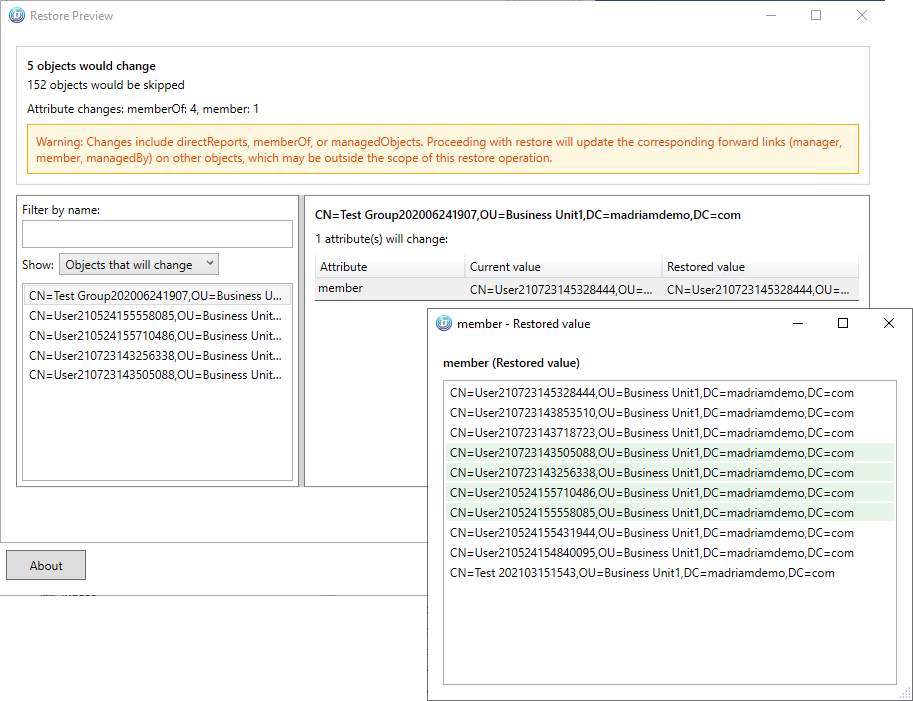
memberOf, directReports, managedObjects) modify the forward link on the target object, which may be outside your intended scope. The restore preview warns when such changes are included. Review the preview carefully before proceeding.
- Domain controller mapping: For cross-domain restores, configure
DomainControllers in config so each domain has a target DC. Without this, the application may use the nearest DC, which might not be able to write to objects in other domains.
Test cross-domain restores in a non-production environment first.
Attributes never restored
Certain Active Directory attributes are never restored because they are system-managed, constructed, or security-sensitive. The default list includes: adsPath, whenCreated, whenChanged, whenModified, uSNChanged, uSNCreated, objectGUID, distinguishedName, createTimeStamp, modifyTimeStamp, replication metadata, logon-related attributes, and password-related attributes. It also excludes constructed attributes (canonicalName, tokenGroups, tokenGroupsNoGCAcceptable, msDS-User-Account-Control-Computed). The linked backlink attributes (directReports, memberOf, managedObjects) are restored by updating the corresponding forward link on the linked object (manager, member, managedBy); this may modify objects outside the DN filter scope. The restore preview shows a warning when such changes are included. You can add more to this list or view the full default in the configuration file at %AppData%\ADExportRestore\config.json under Restore.AttributesNeverRestore. Restore uses parallel processing by default; you can tune Restore.MaxDegreeOfParallelism in config (1 = sequential, 0 = auto).
Purge (remove defunct objects)
When enabled, ADExport removes objects from the database that have not been seen in the current export before the cutoff date. This keeps the database in sync with AD when objects are deleted or moved out of scope. The cutoff date is stored in config; the UI uses a date picker, and the CLI uses --purge-max-age to compute it (e.g. 30 days ago).
Example (CLI):
ADExport export --searchroot "OU=Users,DC=contoso,DC=com" --exportattribute department --ldapfilter "(objectClass=user)" --database "C:\Backup\ad-export.db" --purge --purge-max-age 30
Max age expressions (CLI): Plain number = days. Suffixes: w = weeks, m = months, y = years. Examples: 30, 2w, 1m, 1y. When omitted with --purge, the stored date from config (or from a previous run) is used.
Risk with multiple export jobs: If you run separate export jobs for different search roots or filters (e.g. one job for OU=Users, another for OU=Groups), an object in OU=Users is only updated when that job runs. If the Users job runs weekly and you use --purge --purge-max-age 7, objects in Users could be purged even though they still exist in AD. Use purge only when a single export job covers all objects you care about, or set the max age longer than the longest interval between runs of any job that might export a given object.
Supported attribute types
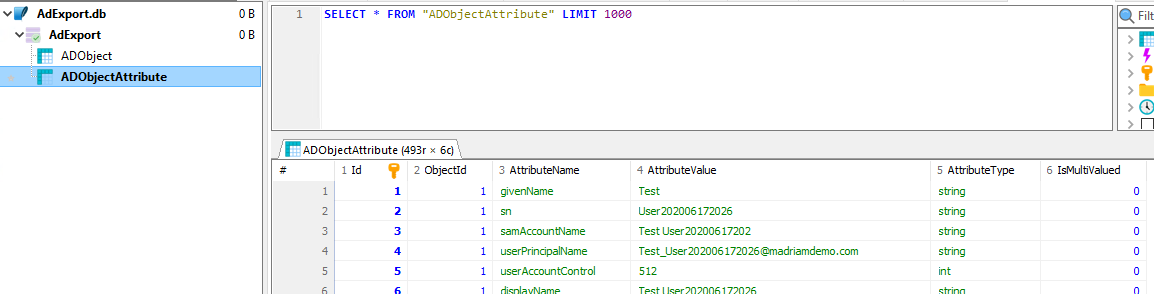
- DirectoryString, UnicodeString, CaseIgnoreString, DN
- Integer, Boolean
- Multi-valued strings (stored as JSON array)
Export performance: selecting attributes
ADExport runs much faster when you select specific attributes to export rather than choosing “Export all attributes”. This holds true even when you provide an expansive list of attributes—the export engine only requests the attributes you specify from the domain controller, reducing network traffic and processing time.
Two PowerShell scripts in the tools folder help you build a suitable attribute list:
- Get-SchemaAttributes.ps1 returns all supported attributes (DirectoryString, CaseIgnoreString, DN, Integer, Boolean) defined in the AD schema for a given list of object classes. Use
-ObjectClasses to specify which classes (e.g. user, group, computer) and -SupportedTypesOnly to restrict results to types the application can export.
- Update-ConfigExportAttributes.ps1 calls Get-SchemaAttributes.ps1 for common object classes (user, group, computer, contact, organizationalUnit, container, domainDNS, etc.) and writes the resulting attribute list into the
ExportAttributes section of your config file.
Example (run from a command prompt, with the tools folder as the current directory):
cd C:\ADExportRestore\tools
powershell -ExecutionPolicy Bypass -File .\Update-ConfigExportAttributes.ps1
To query the schema for specific object classes without updating config:
powershell -ExecutionPolicy Bypass -File .\Get-SchemaAttributes.ps1 -ObjectClasses user,group,computer -SupportedTypesOnly
Windows Task Scheduler
You can run ADExport or ADRestore on a schedule using Windows Task Scheduler. Use the CLI tools (ADExport.exe, ADRestore.exe), not the GUI applications.
Creating a scheduled task
- Open Task Scheduler (taskschd.msc).
- Click Create Basic Task (or Create Task for more options).
- Name the task (e.g. “AD Export nightly”) and click Next.
- Choose a trigger (e.g. Daily) and set the time. Click Next.
- Select Start a program and click Next.
- Configure the action:
- Program/script: Full path to the executable, e.g.
C:\ADExportRestore\ADExport.exe
- Add arguments: Your options, e.g.
--searchroot

"OU=Users,DC=contoso,DC=com" --exportattribute department --ldapfilter

"(objectClass=user)" --database "C:\Backup\ad-export.db"
- Start in: The folder containing the executable, e.g.
C:\ADExportRestore
- Finish the wizard.
Licence for scheduled tasks
The task runs under the account you specify. That account’s %AppData% is used for the default licence path. If the task runs as a service account or SYSTEM:
- Use
--licence in the arguments with a full path to the licence file, or
- Set the
ADEXPORT_LICENCE_PATH environment variable for that account (e.g. via a wrapper script or system environment variables).
Recommendations
- Run as: Use a domain account with read access to AD (for ADExport) or write access (for ADRestore).
- Start in: Always set the “Start in” folder to the application directory so dependencies load correctly.
- Logging: The application writes a file log (see Logging below). Use the History tab in Task Scheduler to see if the task ran; check the log file for export/restore details.
Logging
Export and restore operations are logged to a file. Logging is configured and enabled via NLog.config in the same folder as the executable (ADExport.exe, ADRestore.exe, or the UI apps). By default, log files are written to a logs subfolder under the application directory, with one file per day (e.g. logs/adexportrestore-2026-02-22.log). To change the log path, level, or archive behaviour, edit NLog.config and restart the application. You can disable file logging by setting minlevel="Off" on both logger rules in NLog.config, or enable verbose (debug) output by setting minlevel="Debug" on the catch-all rule; see the comments in NLog.config for details. NLog’s own diagnostics (if enabled) are written to logs/nlog-internal.log.
Troubleshooting
| Message |
Cause |
| Licence file not found |
No licence at default path; set ADEXPORT_LICENCE_PATH or use --licence |
| Licence file is invalid or corrupted |
JSON parse error; check file format |
| Unsupported licence format |
Contact your administrator |
| Licence was signed with an unknown key |
Contact your administrator |
| Licence signature is invalid |
File may be tampered or licence is invalid; contact your administrator |